
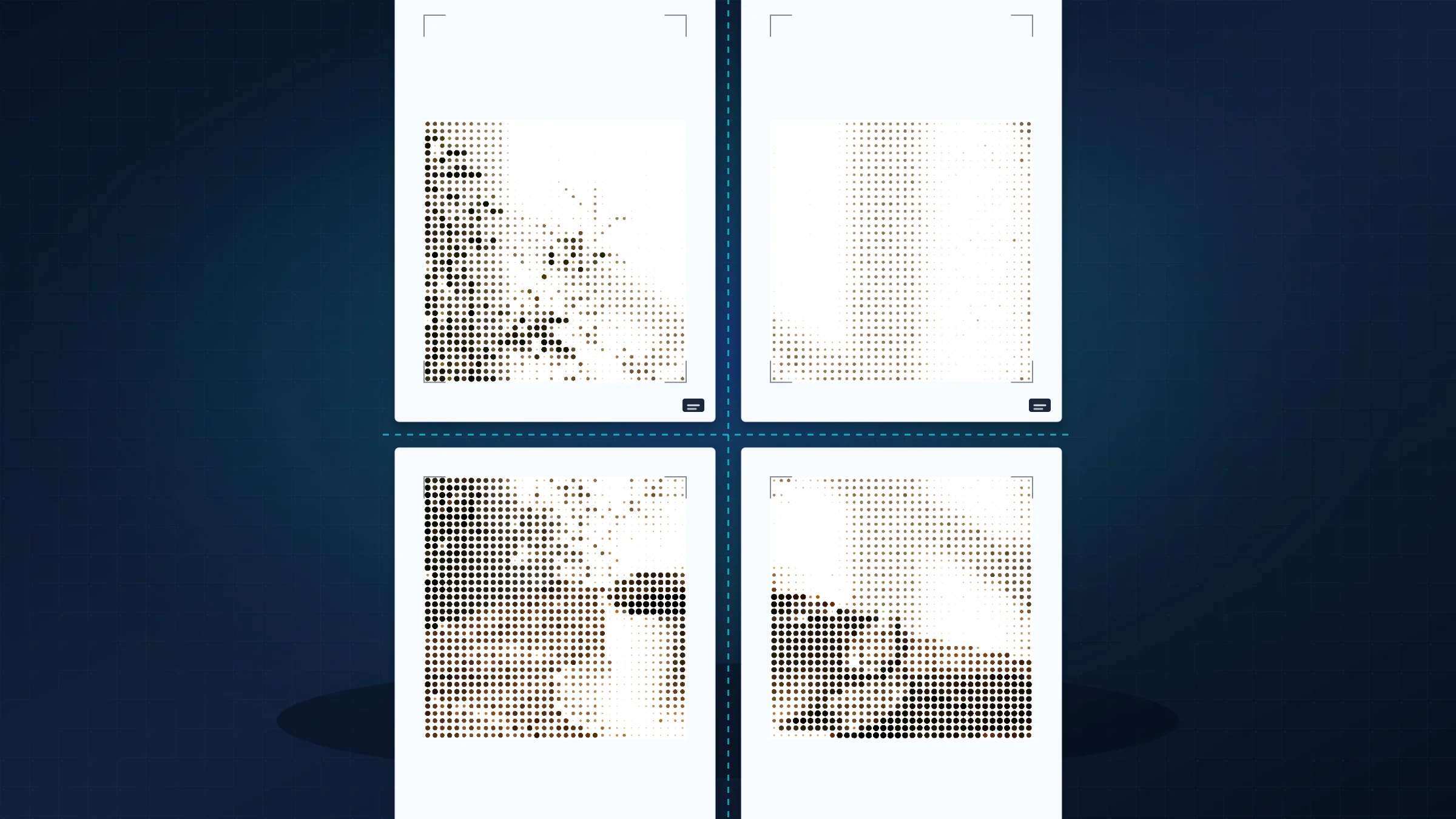
Printing one JPG across a 2 by 2 grid of A4 sheets is a practical way to make a small poster without a large-format printer. The layout uses four pages total: two sheets wide and two sheets tall.
The important part is not only splitting the image. You also need a source JPG that can handle enlargement, a PDF that preserves the page grid, and printer settings that do not shrink the output.
Plan for trimming from the start. Most home printers leave an unprintable white border of about 3 to 5 mm, even when the PDF pages are correct. The clean result comes from printing at 100%, trimming the internal borders, and joining the image content carefully.
What a 2 by 2 A4 poster means
A 2 by 2 A4 poster uses four sheets. With portrait pages, the assembled sheet area is roughly 420 by 594 mm before printer margins and trimming. With landscape pages, it is roughly 594 by 420 mm.
Choose the orientation that matches the image:
use portrait pages for a tall image
use landscape pages for a wide image
crop first if the subject would otherwise land across a seam
For a broader A4 tiling workflow, see the full guide to printing an image on multiple A4 pages.
Prepare the JPG before you split it
Start with the best version of the JPG you have. A file that already looks soft on screen will not become sharper when it is enlarged across four pages.
Use these checks before exporting the poster:
keep at least 1500 to 2500 pixels on the short side for casual home posters
use more resolution if the image contains small text or fine detail
brighten dark images slightly because home prints often come out darker than the screen
keep faces, logos, and important details away from page joins when possible
Create the four-page PDF
Open Rasterbator.pics in your browser, load the JPG, and choose A4 as the paper format. Rasterbator.pics processes images locally in the browser, so the poster layout is prepared on your device.
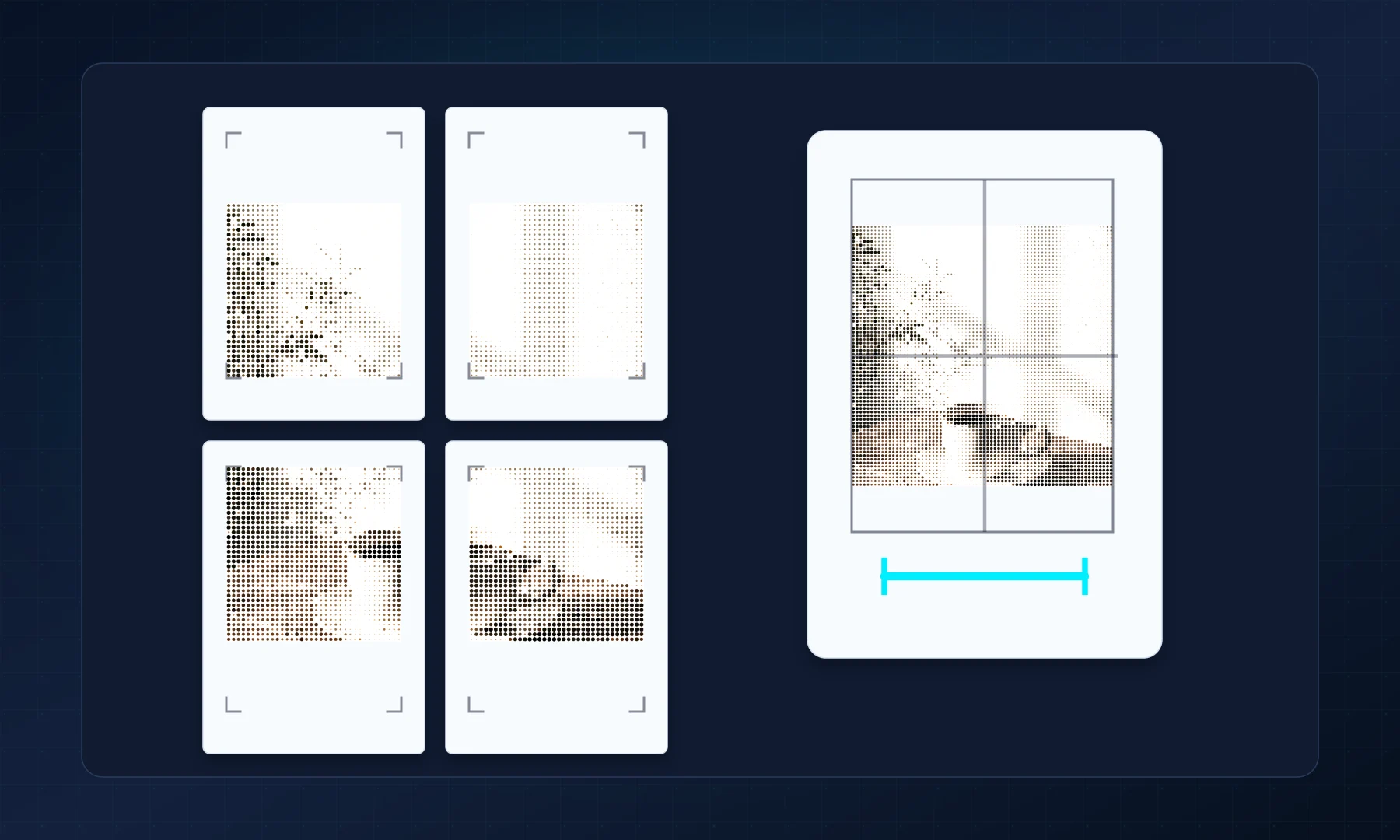
Set the poster to two pages wide by two pages tall, review the crop, and export a PDF. Saving a PDF before printing is more reliable than printing directly from an image viewer because the page boundaries and scale are already fixed.
Some PDF readers, including Adobe Acrobat Reader, also include a Poster or tiled-printing option in the print dialog. That can be useful when you already trust the desktop app. Rasterbator.pics is clearer when you want to choose the poster grid first, keep the JPG on your device in the browser, and export a predictable four-page PDF before opening the printer dialog.
Print at actual size
Open the PDF in your PDF viewer and check that it contains exactly four pages. Then print one page as a scale test before printing the full set.
Checklist before you hit Print
Paper size is A4 in both the PDF and printer dialog.
Scale is set to Actual Size or 100%.
Fit to page, Shrink to printable area, and Scale to paper are disabled.
Orientation matches the PDF.
One test page has been printed and checked with a ruler.
The most common failure is accidental scaling. If the printer shrinks every page a little, the four sheets will not line up cleanly.
Assemble the four sheets
Lay the pages out in order before trimming. For a clean 2 by 2 join, trim only the internal edges first, then align the image content rather than relying only on paper edges.
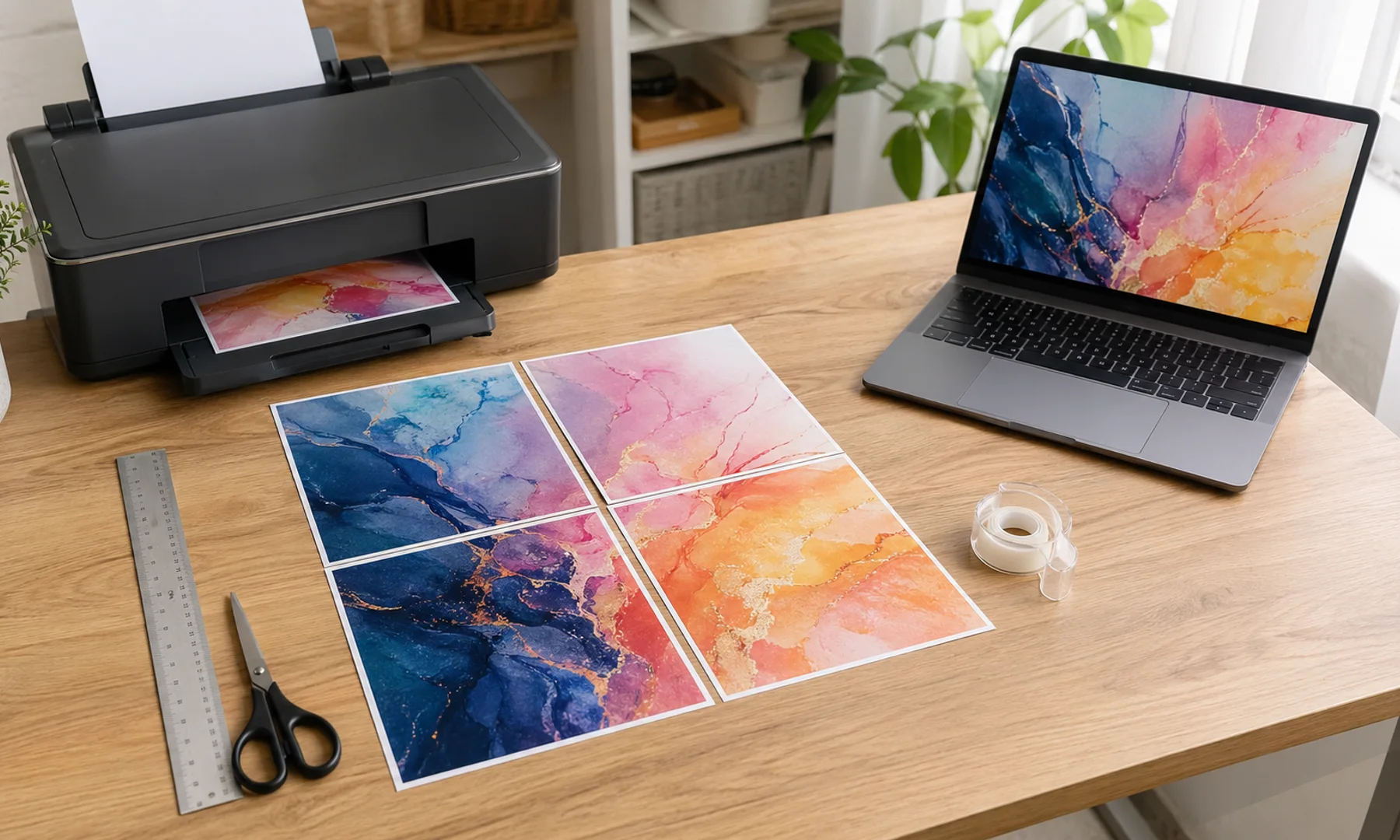
Use a glue stick when you want a clean front surface and a little time to adjust alignment. If you use tape, tape from the back so the join does not glare under classroom or desk lighting. Avoid glossy tape across the front unless the poster is only temporary.
Tape lightly at first, check the full poster, and then reinforce the joins. If you plan to hang the poster for a while, mount it on card, foam board, or another flat backing.
Quick fixes
If the poster printed too small, reprint with Actual Size or 100%. If the pages do not align, confirm that A4 was selected everywhere and that no print-dialog scaling was applied. If the JPG looks blurry, use a larger source image or reduce the final poster size.
For a deeper scale check, compare this workflow with the guide to Actual Size versus Fit to Page.
FAQ
How many A4 sheets do I need for a 2 by 2 JPG poster?
You need four A4 sheets total: two sheets across and two sheets down.
Should I print the tiled PDF with Fit to page enabled?
No. Print at Actual Size or 100% so every sheet keeps the scale calculated by the poster layout.
Does Rasterbator.pics upload my JPG to a server?
No. Rasterbator.pics processes images locally in the browser for this poster workflow.
Try Rasterbator.pics
Use Rasterbator.pics to test the article advice with your own image, page size, overlap, margins, and tiled PDF export.
Try Rasterbator.pics