
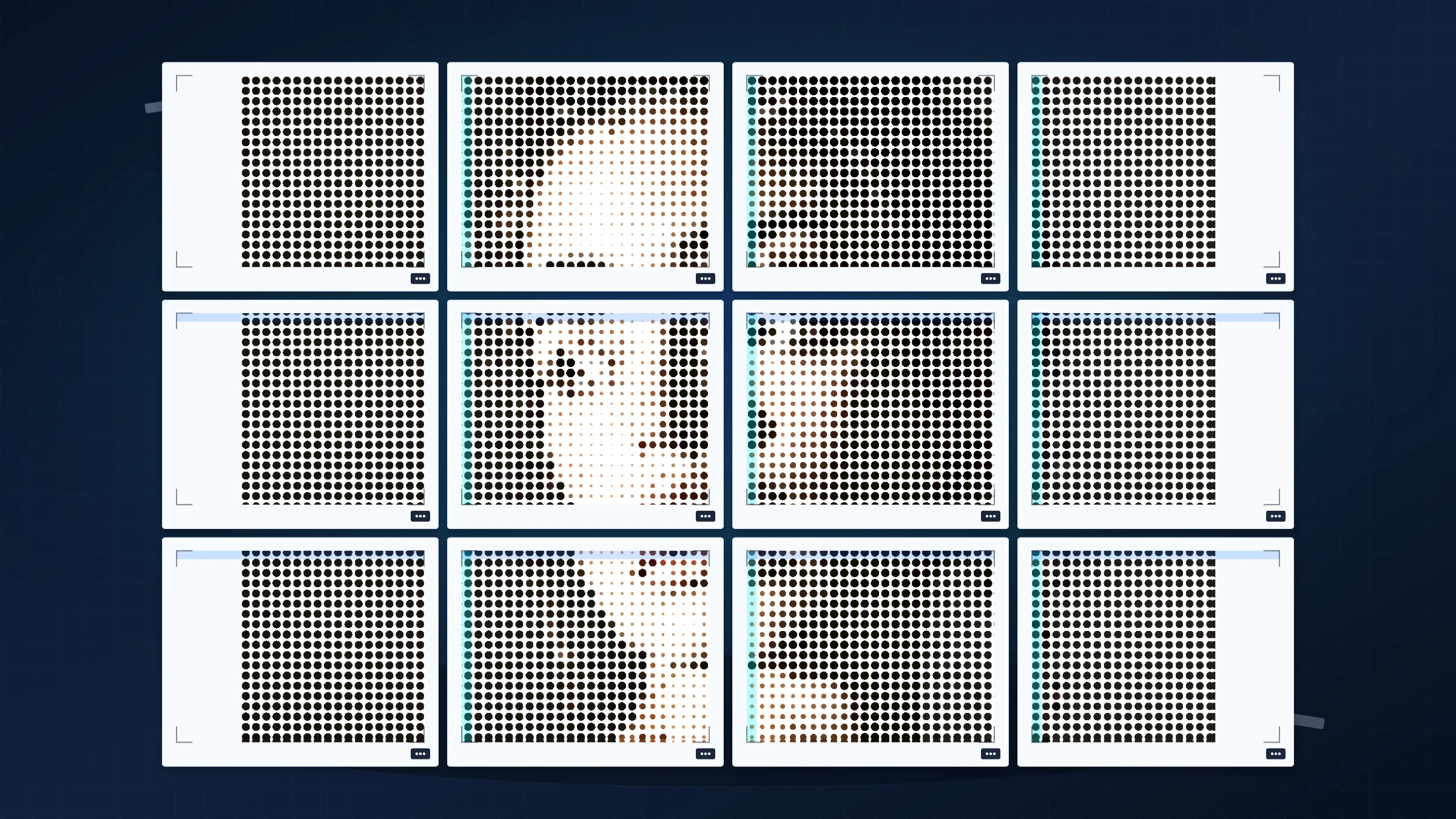
Splitting a single image across multiple A4 pages is a practical way to create a wall-sized poster with a home printer. The clean result comes from three decisions before you print: final size, printer margins, and scale.
Rasterbator.pics processes the image locally in your browser, lets you choose the A4 layout clearly, and exports a PDF you can inspect before printing. Some desktop PDF readers, including Adobe Acrobat Reader, also offer Poster or tiled printing. That can be useful if you already have a finished PDF. Rasterbator.pics is clearer when you are starting from an image and want to plan poster size, overlap, and page count first.
Most home printers leave a 3-5 mm unprintable white border on plain A4 paper. That is normal hardware behavior, not a broken PDF. For clean joins, plan to trim the white borders before assembly.
Choose the final poster width first
The cleanest way to plan a multi-page A4 poster is to decide how wide the assembled result should be before touching any printer settings. In a poster layout tool, paper format, sheet count, margins, and overlap determine the physical outcome more reliably than a generic print dialog does.
A4 paper is 210 by 297 mm. Once printer margins and overlap are accounted for, each sheet contributes less usable width and height than the raw paper size suggests. That is why previewing the assembled dimensions before exporting matters.
Use sheet count if you want a quick layout: for example, two sheets wide by two sheets tall. Use physical dimensions if the poster must fit a wall, frame, classroom board, or display area.
Keep printer margins realistic
Home printers rarely print edge-to-edge on plain A4. If you ignore the hardware border, the printer still clips a few millimeters and the alignment gets messy fast. Match the layout margin control to your actual device limits, then let overlap absorb small trimming errors.
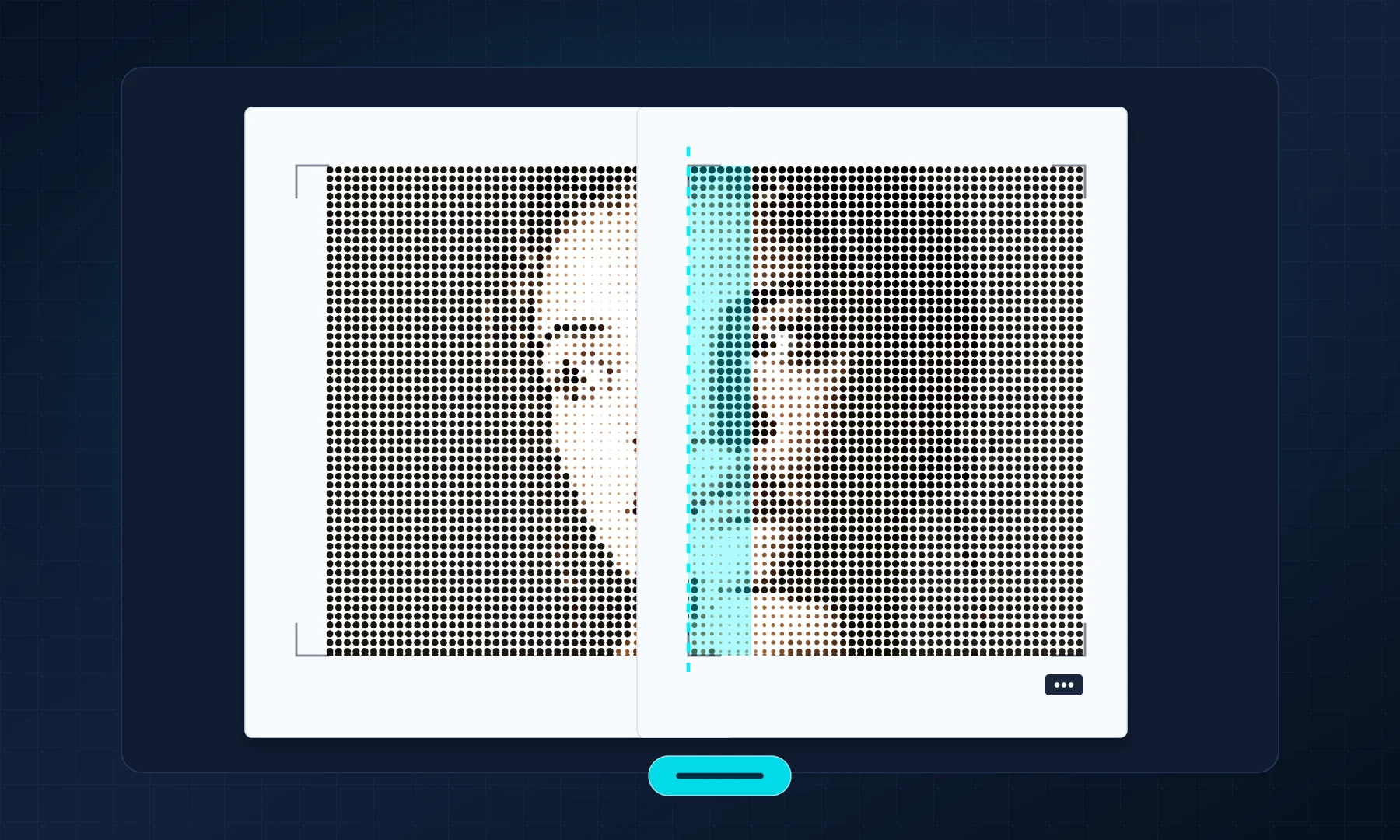
A modest overlap, such as 5 mm, usually gives enough room to line up seams without wasting much paper. A larger overlap can help on very big posters, but it also increases the amount of repeated image area you have to trim.
Export once, then print at 100%
After the preview looks right, export the poster and keep the printer dialog simple. The goal is to preserve the scale already calculated by the layout engine instead of letting the printer driver reinterpret it.
Use Actual Size, 100%, or Scale: 100%. Avoid Fit to Page, Shrink to printable area, and similar automatic scaling options. For a deeper explanation, see Actual Size vs Fit to Page.
If you print from Adobe Acrobat Reader, check the page sizing section carefully. Its Poster feature can tile pages, but if Rasterbator.pics already generated your tiled PDF, the safer job for the PDF reader is to print each page at 100%.
Trim before assembly
After printing, lay the pages out in order before cutting anything. Trim only the white borders that block a join, then align the image content across the overlap band.
A glue stick is usually cleaner than liquid glue because it does not wrinkle the paper as much and gives you a short moment to slide the sheet into position. If you prefer tape, use tape from the back. Avoid glossy tape on the front of the poster when appearance matters because it catches light and makes seams more visible.
Checklist before you hit Print
A4 is selected in Rasterbator.pics and in the printer dialog.
The poster size or sheet grid is final before export.
Overlap is enabled; 5 mm is a good starting point for home printers.
The printer dialog uses Actual Size or 100%, not Fit to Page.
A test sheet has been printed and measured if scale matters.
You have a trimming plan for the normal 3-5 mm white printer border.
Glue stick or back-side tape is ready for clean assembly.
FAQ
How do I split an image across several A4 pages?
Choose A4 paper, pick the poster grid or final size, keep overlap enabled, export the PDF, and print every sheet at Actual Size or 100%.
How much overlap should I use for a tiled A4 poster?
A 5 mm overlap is enough for most home printers because it repeats a narrow image band that helps neighboring sheets line up before taping.
Can I use Adobe Acrobat Reader instead?
Yes. Adobe Acrobat Reader includes Poster or tiled printing in many desktop print dialogs. Rasterbator.pics is useful when you want browser-local image processing, clear poster setup, and a predictable PDF before printing.
Try Rasterbator.pics
Use Rasterbator.pics to test the article advice with your own image, page size, overlap, margins, and tiled PDF export.
Try Rasterbator.pics