
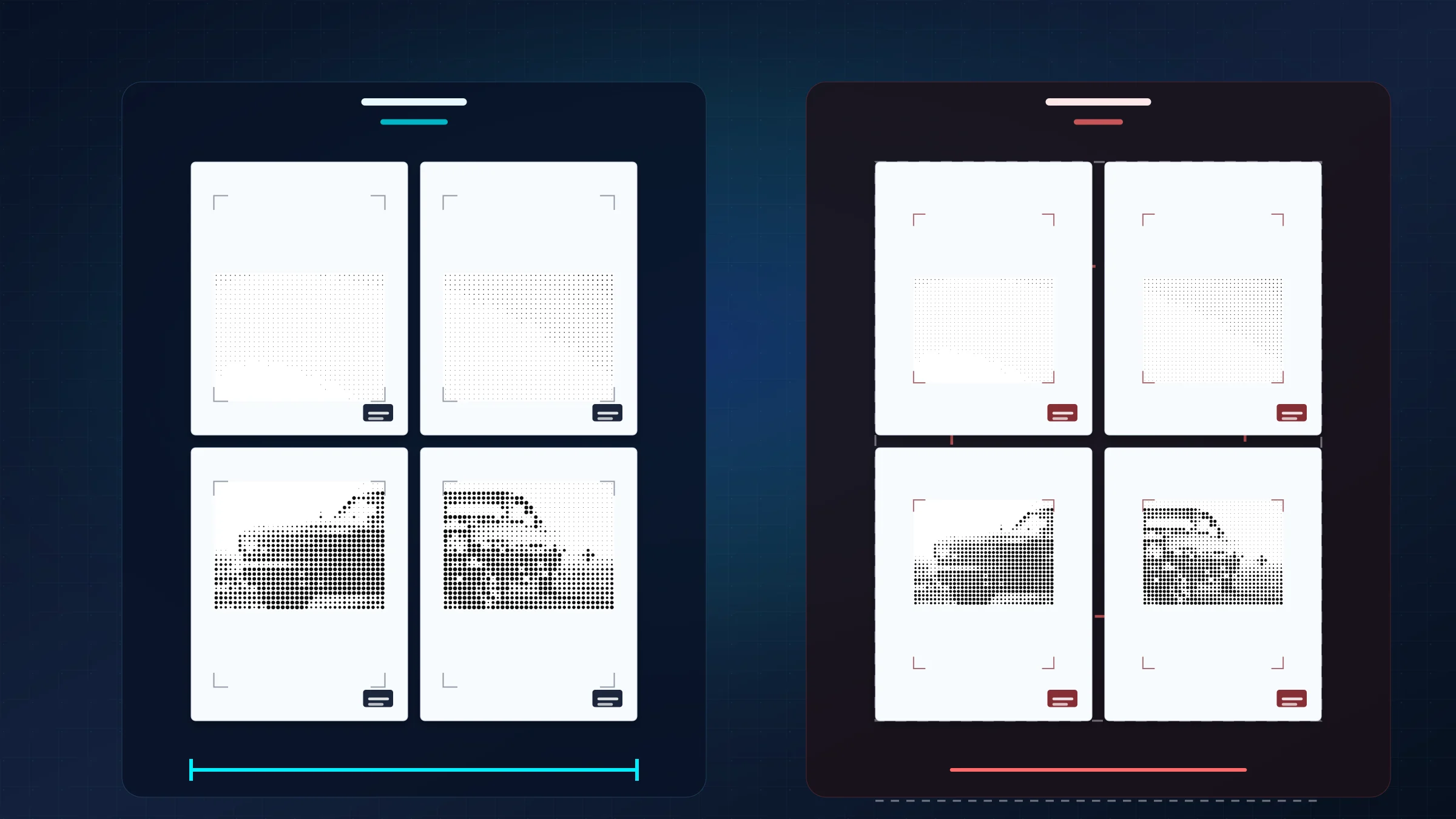
If you are printing a poster across multiple sheets, choose Actual Size or 100%. Using Fit to Page adds unplanned scaling, changes the calculated page geometry, and can make overlap seams stop matching.
Printing a large assembled poster requires math. When Rasterbator.pics exports a poster PDF, every tile already contains the planned margins, page boundaries, and overlap zones. The print dialog should reproduce that PDF, not resize it.
There is one separate issue to expect: most home printers leave a 3-5 mm unprintable white border on the paper. That white edge is normal. You trim it during assembly; you should not use Fit to Page to hide it.
Actual Size preserves your layout
When a poster layout engine calculates how big each tile should be, your printer driver should stay out of the way. Actual Size, 100%, or a similar exact-scale label tells the printer to respect the exported dimensions instead of optimizing them again.
This matters for physical assembly. Even a small automatic reduction changes where the cut lines land. It introduces uneven borders or reduces the planned overlap strip, making neighboring tiles harder to align cleanly.
Fit to Page breaks tiled posters
Fit to Page is an excellent default for many office documents, but it breaks the geometry of a multi-page poster. If the printer driver scales every sheet down by even 2%, the finished poster becomes smaller than planned and the joins drift.
| Print setting | What it does | Poster result |
|---|---|---|
| Fit to Page | The printer driver adds its own margins and alters the scale. | Useful for some single-page documents, but unreliable for tiled image assembly. |
| Actual Size or 100% | The printer preserves the calculated overlap and scale already baked into the PDF. | The poster keeps the intended dimensions and neighboring tiles stay easier to align. |
Avoid auto-rotate and auto-center options if they modify the tile layout. Always verify the scale field in the print dialog before printing a full batch.
PDF readers and Poster mode
Adobe Acrobat Reader and some other desktop PDF readers include a Poster or tiled printing option. That is useful when you have a single-page PDF and want the PDF reader to split it across several sheets.
If you already exported a tiled PDF from Rasterbator.pics, the poster setup is already done. In that case, use the PDF reader mainly to print the pages at Actual Size. Rasterbator.pics is strongest when you start from an image and want browser-local processing, clear poster sizing, overlap controls, and a predictable PDF before printing.
Print one test page before committing
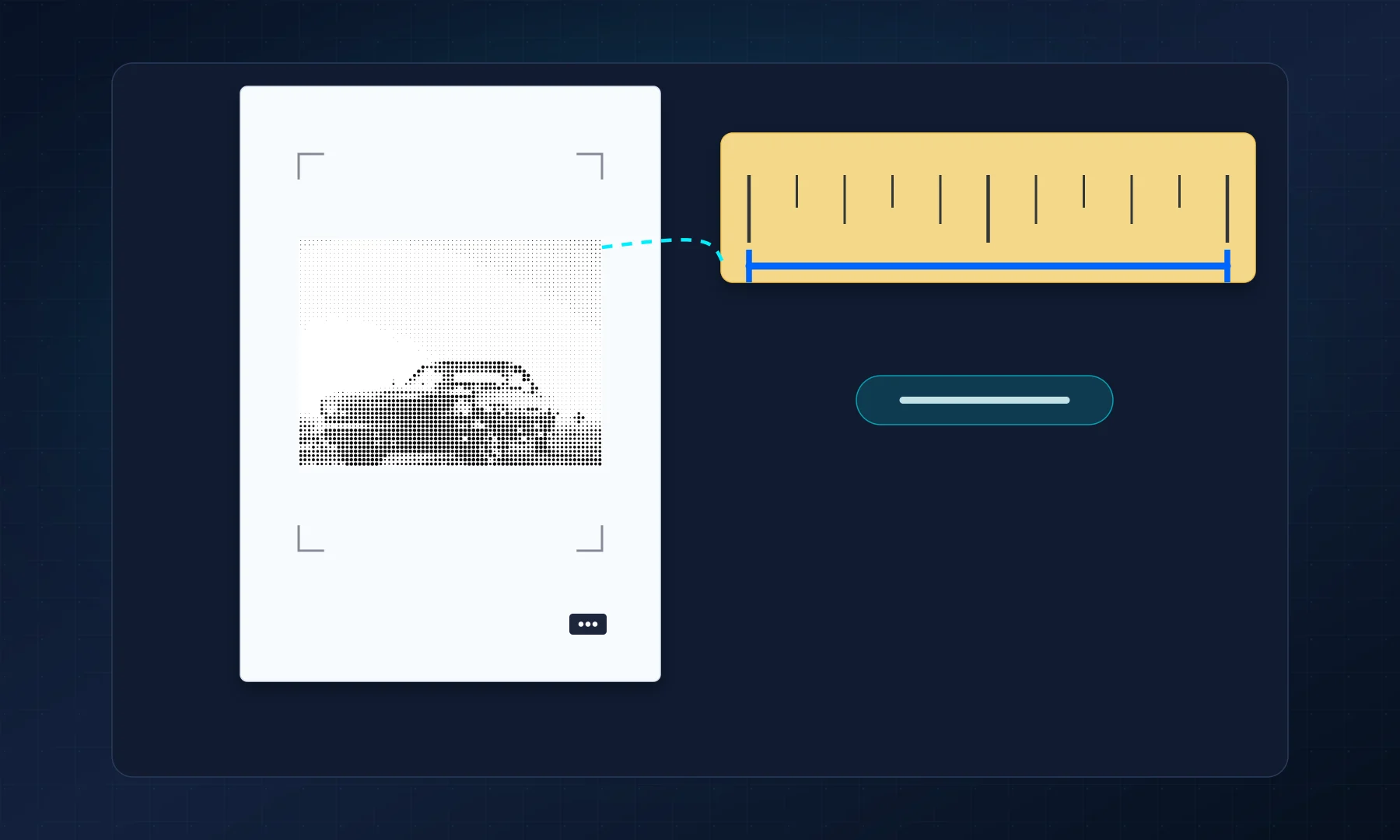
A single-page test catches print scaling mistakes immediately. Print one center tile, measure a reference distance, and confirm that the printed margins and overlap match the export preview.
If the test page aligns, the remaining pages will follow. If the scale is wrong, you can fix the printer setting before wasting ink and paper on the full run.
Assemble after scale is correct
Once the scale is right, the remaining work is trimming and joining. Trim the white borders that block the joins, align the image across overlap bands, then secure the pages.
For clean seams, use a glue stick or apply tape from the back. Avoid glossy tape across the front of the poster when the join will be visible; it reflects light and makes the seam stand out.
Checklist before you hit Print
The PDF was exported from Rasterbator.pics after the poster size was finalized.
The printer dialog uses Actual Size, 100%, or Custom Scale 100.
Fit to Page, Shrink to Fit, and Scale to printable area are disabled.
Paper size matches the PDF and the paper loaded in the tray.
One test tile has been printed and measured with a ruler.
The normal 3-5 mm printer border is included in your trimming plan.
Glue stick or back-side tape is ready for assembly.
FAQ
Should I use Actual Size or Fit to Page for a tiled poster?
Use Actual Size or 100% so the printer preserves the scale, margins, and overlap that were already calculated in the exported poster PDF.
Do I still need to trim if I print at 100%?
Yes. Most home printers leave a 3-5 mm unprintable white border on each sheet, so trimming is still a normal part of tiled poster assembly.
Try Rasterbator.pics
Use Rasterbator.pics to test the article advice with your own image, page size, overlap, margins, and tiled PDF export.
Try Rasterbator.pics