
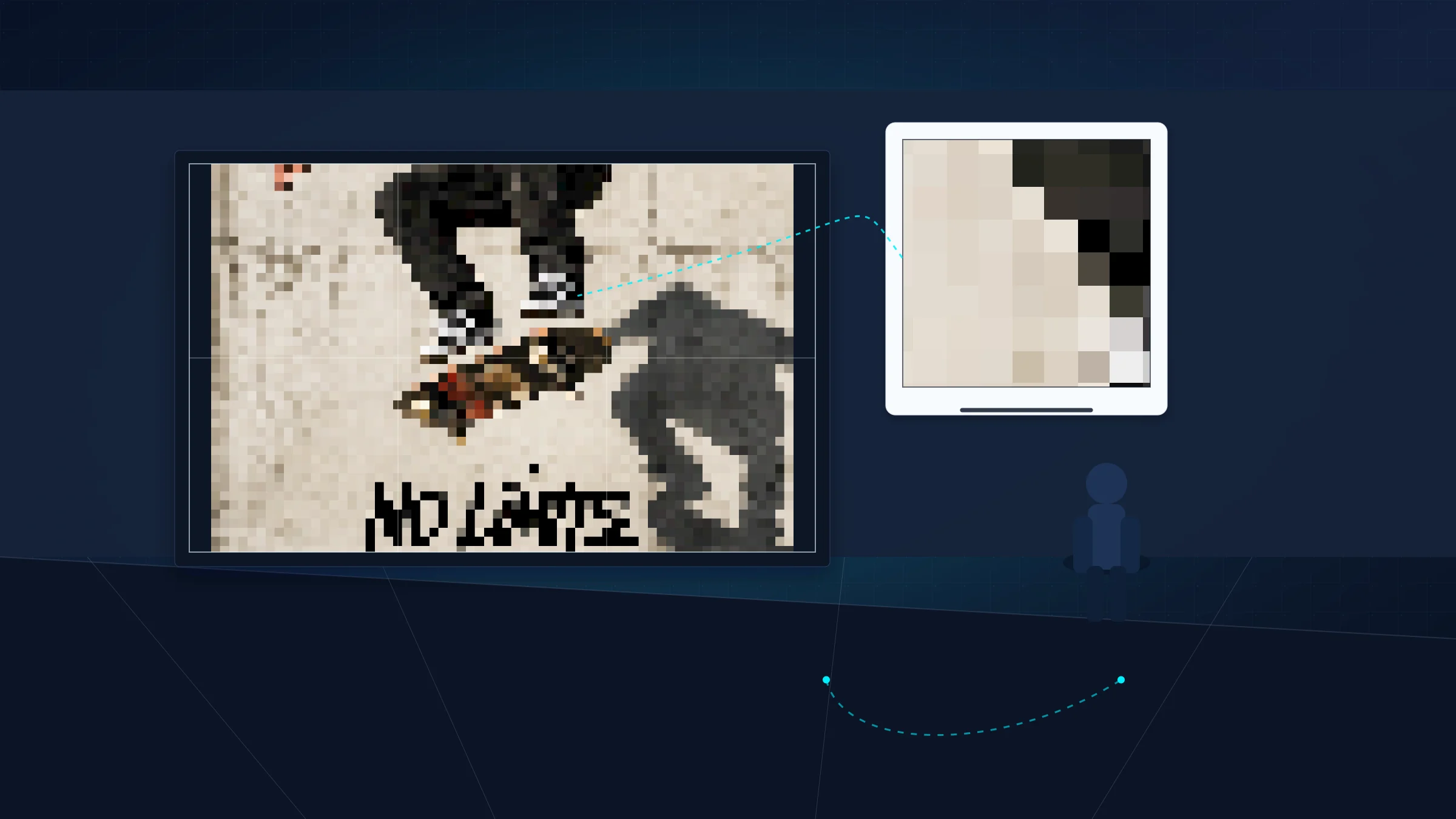
A common misconception in large-format printing is that every poster needs a 300 DPI source at final size. In reality, the useful resolution depends on poster size, source detail, and how far away people stand when they view it.
For image planning, think in pixels per inch at final size. The printer may use dots, but the question for your source file is simpler: do you have enough real image pixels for the final physical poster?
One print reality still applies no matter how sharp the source is: most home printers leave a 3-5 mm unprintable white border on each sheet. For a tiled poster, trimming is usually part of the job.
Viewing distance changes what looks sharp
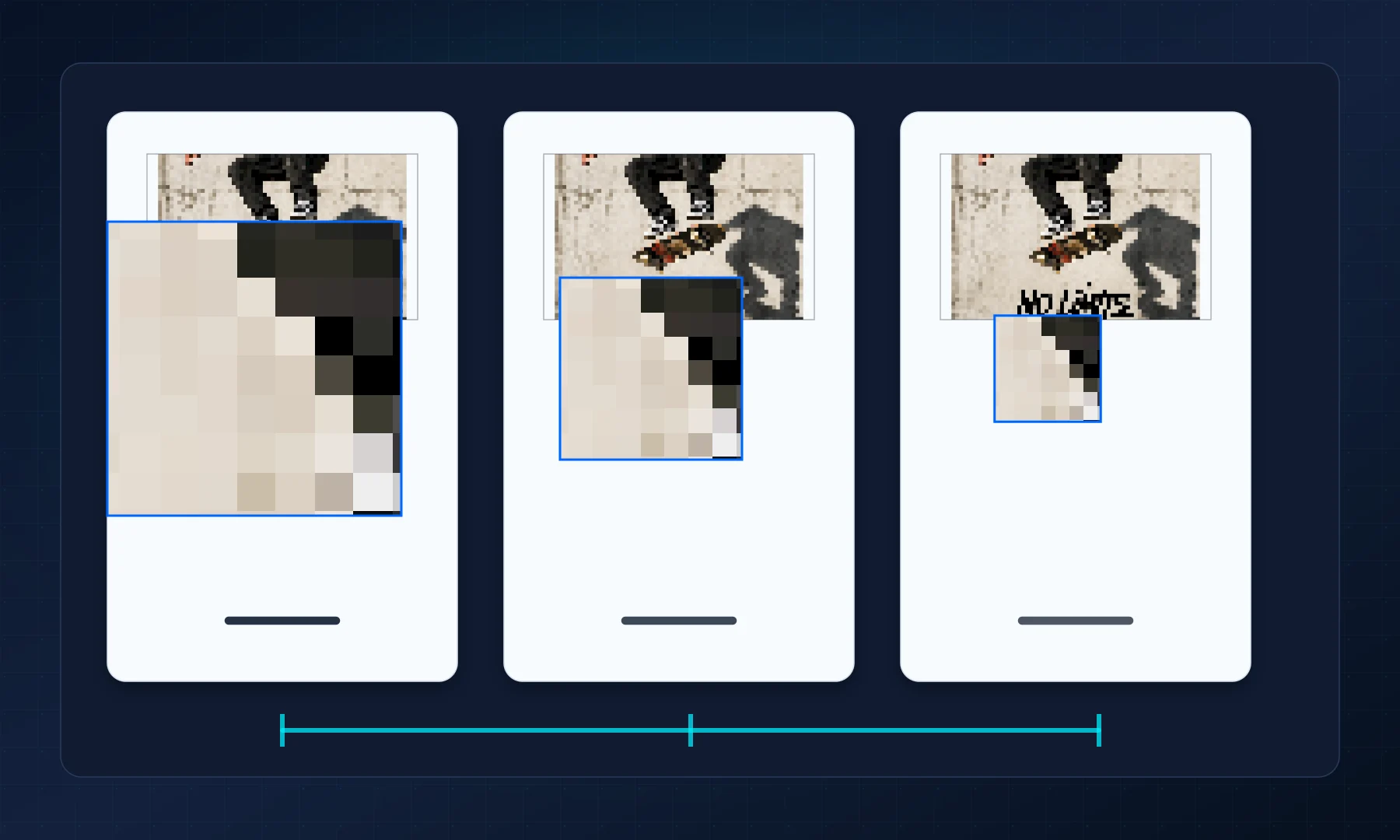
A poster on a wall is not judged the same way as a photograph held in your hands. The farther away people stand, the lower the required pixel density becomes for the print to look crisp to the human eye.
That is why a source image that seems modest on a computer screen can still work well for a big poster. Large-format printing is about the final physical context, not just achieving the highest possible DPI metric.
Use practical resolution targets
For close inspection, more pixels help. For most wall posters viewed from a normal room distance, moderate effective resolution is often enough. Start by checking whether the most important features, such as faces, text edges, map labels, and thin lines, stay clear in the layout preview.
Use these practical targets:
100 to 150 PPI at final size for posters viewed from across a room
150 to 200 PPI at final size for posters viewed at normal wall distance
200 to 250 PPI at final size for posters people will inspect closely
300 PPI at final size only when the poster contains fine text, line art, or close-view detail that truly needs it
To estimate the source size, multiply final poster inches by your target PPI. A 24 by 36 inch poster at 150 PPI needs about 3600 by 5400 pixels.
If the source image is already soft before export, increasing the sheet count will not create detail that does not exist. In that case, reduce the physical dimensions or pick a stronger source image.
Upscaling limits
Upscaling can smooth jagged edges, but it does not recover lost detail. If critical elements look noisy or soft at the planned output size, reduce the poster dimensions or replace the image entirely before printing.
Preview before generating the PDF
Rasterbator.pics processes images locally in your browser, so you can test poster sizes without uploading the image to a server. Use the preview to check the important parts of the picture before exporting the tiled PDF.
If faces, text, or fine details look weak in the preview, do not expect the printer to fix them. Choose a smaller poster size or find a cleaner source file.
Rasterbator.pics and PDF reader tiling
Adobe Acrobat Reader includes Poster or tiled printing for PDF files. That can be useful when you already have a finished PDF and only need to split it across sheets.
Rasterbator.pics is more direct when you start from an image: it lets you choose final poster size, preview the output, set margins and overlap, and generate a predictable PDF for printing. After export, still print that PDF at Actual Size or 100%, not Fit to Page.
Print and assemble with the resolution plan in mind
Sharpness is only one part of the final result. A well-sized source can still look poor if the printer scales the PDF or the joins are rushed.
Plan for:
the normal 3-5 mm white printer border
trimming before joining sheets
glue stick for flat, adjustable joins
tape from the back when tape is easier than glue
no glossy front-side tape across visible seams
Checklist before you hit Print
The final poster size is chosen before export.
The source image has enough real pixels for the planned viewing distance.
Faces, text, map labels, and thin lines look acceptable in the preview.
You are not relying on upscaling to restore missing detail.
The PDF will print at Actual Size or 100%, not Fit to Page.
The normal 3-5 mm printer border is included in your trimming plan.
Glue stick or back-side tape is ready for assembly.
FAQ
Do large posters always need 300 DPI?
No. Posters viewed from across a room can look sharp at lower effective pixel density than a photo held close, as long as the important image details remain clear.
Can upscaling make a small image truly sharp?
No. Upscaling can smooth edges, but it cannot recreate missing detail. If faces, text, or fine lines are already soft, use a higher-resolution source or print a smaller poster.
Try Rasterbator.pics
Use Rasterbator.pics to test the article advice with your own image, page size, overlap, margins, and tiled PDF export.
Try Rasterbator.pics