
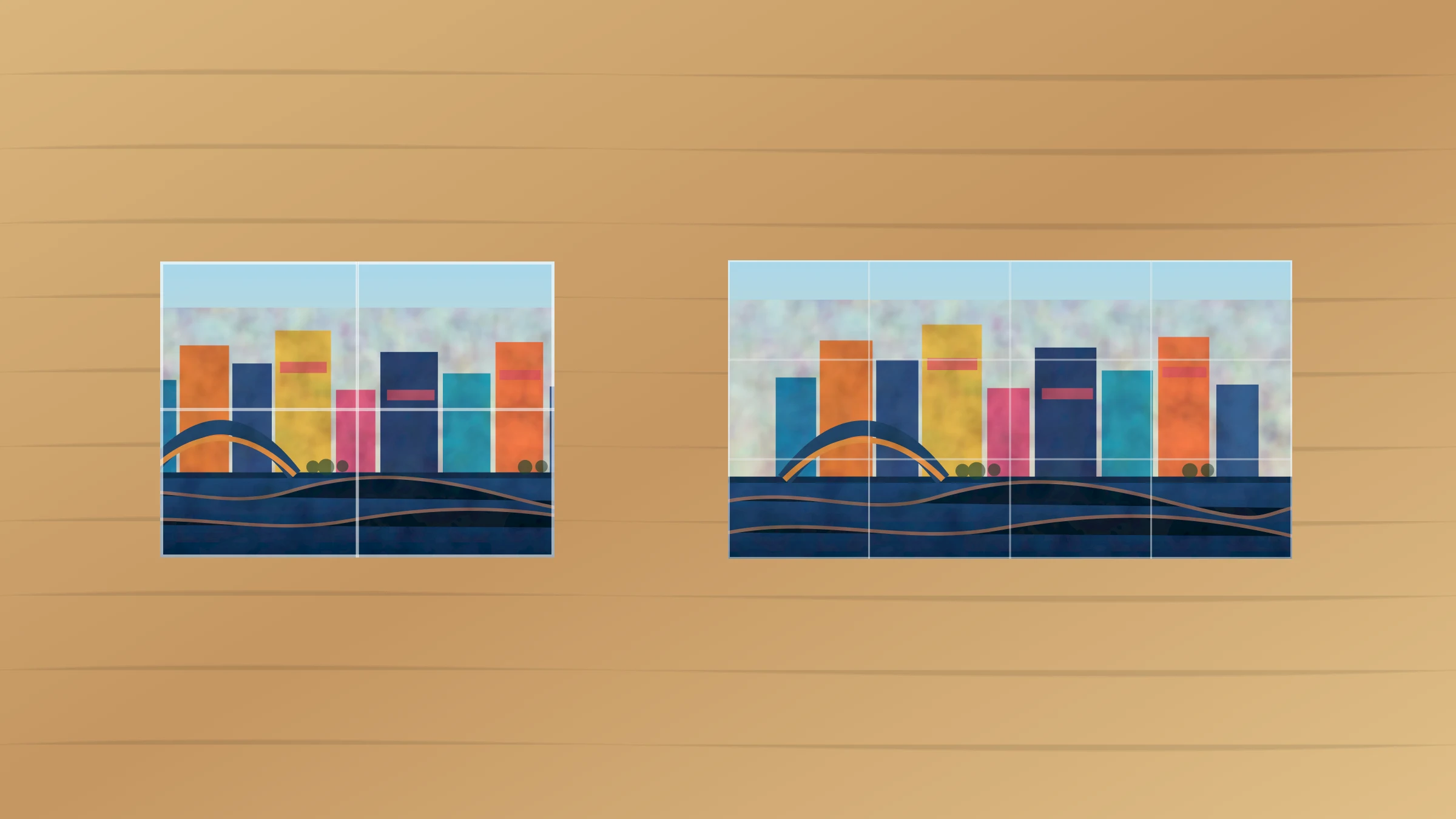
Rasterbator.pics and Block Poster solve the same basic problem: they turn one image into a larger poster you can print on normal paper. The tool splits the image into A4, Letter, A3, or similar sheets, then you print, trim, and assemble the pages into one wall poster.
The difference is in the workflow. Rasterbator.pics is built around local browser processing, preview control, tiled PDF export, ZIP export, and practical assembly options. Block Poster-style tools are usually simpler: choose an image, set the size, and download a tiled PDF.
Rasterbator.pics prepares the poster locally in your browser, so your image stays on your device while you choose the page layout and export format.
Short answer
Use Rasterbator.pics when you care about privacy, print control, overlap, ZIP export, and checking the tiled result before printing many pages.
Use Block Poster when you want a quick basic tiled poster and the image is not sensitive.
For most home projects, Rasterbator.pics is the better all-around choice because it gives you more control before you waste paper and ink. Block Poster can still be useful for simple posters where speed matters more than output control.
Quick comparison
| Feature | Rasterbator.pics | Block Poster |
|---|---|---|
| Main use | Tiled wall posters from images | Tiled wall posters from images |
| Runs in the browser | Yes | Yes |
| Image processing model | Local browser processing | Check the current tool workflow before using private images |
| Best privacy fit | Personal photos and sensitive artwork | Public or non-sensitive images |
| Tiled PDF export | Yes | Common workflow |
| ZIP export | Yes | Not usually the core workflow |
| Overlap control | Useful for trimming and assembly | Depends on the current tool options |
| Best for | Controlled home printing | Quick basic posters |
What both tools do
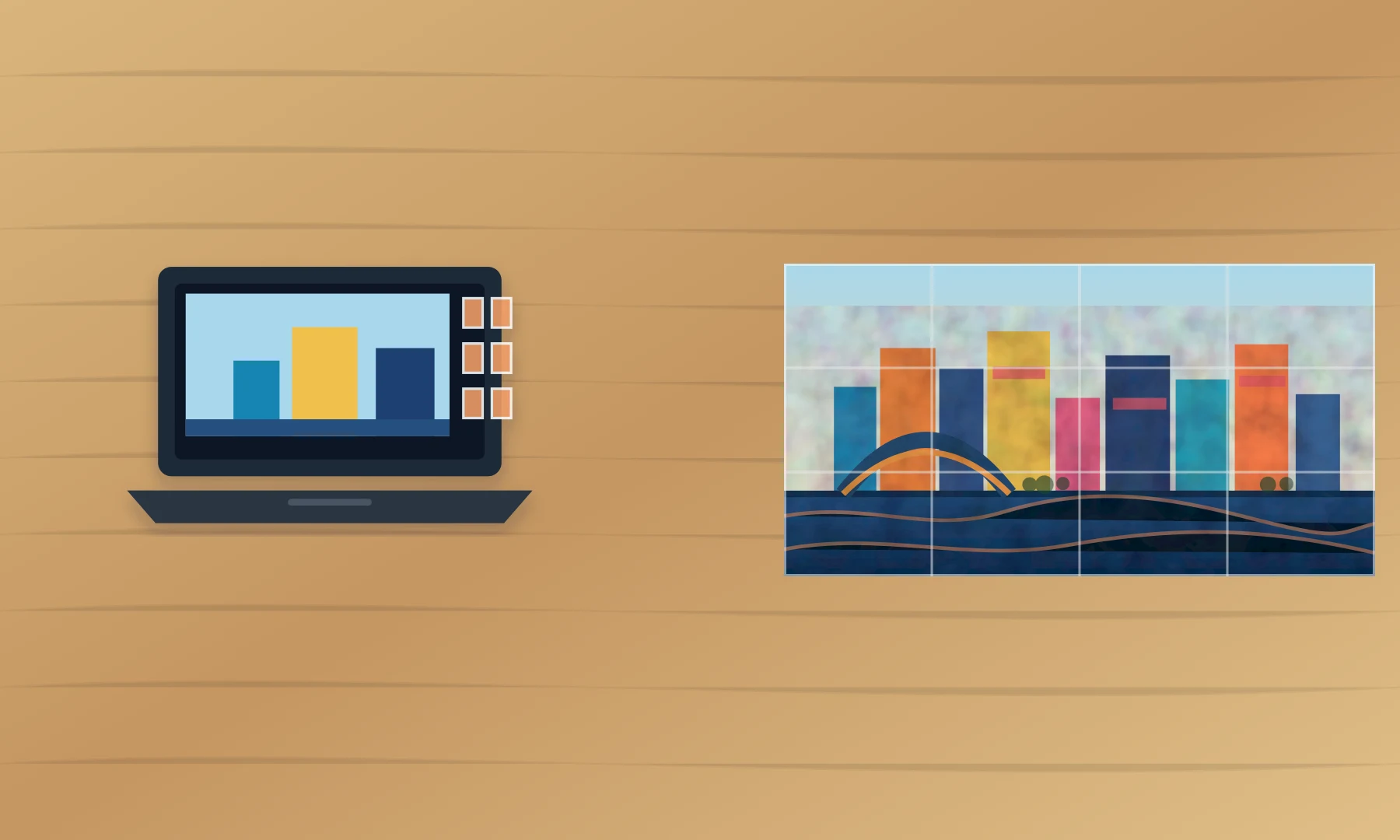
Both tools help you avoid a large-format printer. Instead of printing one oversized sheet, they divide your image into normal printer pages.
The workflow looks like this:
Choose a JPG, PNG, WebP, or similar image.
Select the poster size or page grid.
Generate a tiled output file.
Print every page at the correct scale.
Trim printer margins where needed.
Assemble the pages with glue and tape.
The tool can make the layout. It cannot remove the physical limits of your printer. Most home and office printers leave a 3-5 mm unprintable border around each sheet, so clean assembly still depends on overlap, trimming, and careful print settings.
Privacy and file handling
Privacy is the biggest practical difference.
Rasterbator.pics processes images locally in your browser. That means the poster layout is prepared on your device while you use the web app. This is useful for:
family photos
school materials
personal artwork
office signs
unpublished event posters
images with children, addresses, or private details
With any other online poster maker, check the current file-handling model before using sensitive images. Some tools describe the workflow as uploading an image before generating the poster. That may be fine for public artwork or casual decorations, but it is not the same privacy posture as local browser processing.
PDF output
For most people, PDF is the simplest tiled poster format.
A PDF keeps all pages in one file and preserves the intended paper size. You can open it in a PDF viewer, print every tile in one job, and keep the file for later reprints.
PDF is best when:
you want the easiest print workflow
you are printing the whole poster at once
you want pages to stay in order
you need a file that can be reopened later
you are printing from a school, office, or copy-shop computer
The PDF still has to be printed correctly. Use Actual Size, 100%, or No scaling. Avoid Fit to Page, Shrink to Printable Area, and automatic printer-driver scaling.
ZIP output
ZIP export is useful when you want individual page files instead of one combined PDF.
Use ZIP when you need to:
inspect individual tiles before printing
reprint one damaged page
print only selected sheets
archive the page images separately
use a different print or layout program
send page files to someone else
For a first poster, PDF is usually easier. For careful workflows, ZIP gives you useful control. This is one reason Rasterbator.pics is a stronger fit for larger or more important projects.
Overlap and trimming
Overlap is a repeated strip of image content along page edges. It gives you extra printed area to trim and align.
Overlap helps because home printers usually leave white margins. Without overlap, you may have to choose between visible white gaps and losing image content at the join. With overlap, you can trim one edge, slide it over the neighboring tile, and align the image more cleanly.
Use overlap when:
the poster is larger than 2 x 2 pages
the image has faces, maps, diagrams, or straight lines
the poster will be viewed up close
you are printing on ordinary office paper
your printer margins are uneven
A practical overlap range is often 5-10 mm. Too little overlap makes alignment harder. Too much overlap wastes paper and adds trimming time.
Print scale matters more than the tool name
Many bad tiled posters fail at the print dialog, not inside the poster maker.
Use these settings:
Actual Size
100%
one-sided printing
correct paper size
correct orientation
borderless off unless you know your printer handles it accurately
Avoid these settings:
Fit to Page
Shrink oversized pages
Scale to printable area
Fill entire paper
duplex printing
automatic photo enlargement
If the PDF is printed at 96% or 103%, the pages may still look close, but the assembled poster will drift. Seams become harder to align because each tile has been resized slightly.
When Rasterbator.pics is the better choice
Choose Rasterbator.pics if you want:
local browser processing
a privacy-friendly workflow
tiled PDF export
ZIP export for separate page files
overlap for easier assembly
crop marks and page layout control
a repeatable output file you can save and print again
It is especially useful for personal photos, classroom displays, event signs, tabletop maps, and artwork you do not want to upload unnecessarily.
Rasterbator.pics is also a better fit when the poster has many pages. A 2 x 2 poster is forgiving. A 4 x 4 or 5 x 4 poster needs better planning, because every small scaling or trimming mistake repeats across more seams.
When Block Poster can be enough
Block Poster can be enough when:
the image is public or non-sensitive
you need a quick casual wall poster
the poster is small
you only need a basic tiled PDF
you do not need ZIP export
you do not need much control over overlap or assembly
That makes it useful for simple decorations, classroom drafts, temporary signs, and low-risk projects. The main caution is privacy and output control: check the current tool behavior before you use private images or commit to a large print job.
A practical home-print workflow
Use this workflow with either tool:
Start with the highest-resolution image you have.
Choose a realistic poster size.
Keep the first project manageable, such as 2 x 2 or 3 x 3 pages.
Export a tiled PDF.
Open the PDF in a reliable viewer.
Print one test page at Actual Size or 100%.
Check scale, margins, color, and sharpness.
Print the remaining pages.
Let the ink dry before trimming.
Trim only the joining edges you need.
Align rows carefully on a table or clean floor.
Use glue stick on overlaps and tape on the back side.
Checklist before you hit Print
The image is large enough for the poster size.
The paper size matches the paper in the printer.
The poster grid is realistic for the time you have.
PDF is selected for simple printing, or ZIP for page-by-page control.
Overlap is enabled if clean seams matter.
The print dialog is set to Actual Size or 100%.
Fit, Shrink, and automatic scaling are disabled.
One test page has been printed and checked.
You have a ruler, craft knife or trimmer, glue stick, and back-side tape.
Recommendation
For most home users, Rasterbator.pics is the better choice. It gives you local browser processing, practical export options, and more control over the tiled output before printing.
Block Poster is still useful for quick, simple posters. Use it when the image is not private and you only need a basic tiled PDF.
The bigger or more important the poster is, the more control matters. A few minutes spent checking privacy, output format, overlap, and print scale can save a lot of paper, ink, and trimming time.
FAQ
Is Rasterbator.pics a Block Poster alternative?
Yes. Rasterbator.pics is a browser-based poster maker that splits an image into printable pages and exports a tiled poster file.
Does Rasterbator.pics upload my image?
Rasterbator.pics prepares the poster locally in your browser, so the poster-making work happens on your device.
Is Block Poster good for private photos?
Use caution. If privacy matters, check the current file-handling model before using any online poster maker. Rasterbator.pics is usually the better fit for private photos because it uses local browser processing.
Which format should I choose: PDF or ZIP?
Choose PDF for the easiest print path. Choose ZIP when you want separate tile files, need to inspect pages individually, or may need to reprint one sheet later.
Do I need overlap?
Overlap is strongly recommended for multi-page home posters. It gives you extra image area for trimming and alignment, which helps avoid white gaps between sheets.
Why do my poster pages not line up?
The most common cause is print scaling. Print the PDF at Actual Size or 100%, confirm the paper size and orientation, and avoid automatic scaling in the print dialog.
Try Rasterbator.pics
Use Rasterbator.pics to test the article advice with your own image, page size, overlap, margins, and tiled PDF export.
Try Rasterbator.pics