

You do not need a plotter to print a large PDF. If your printer supports A3 paper, you can split a large PDF into multiple A3 sheets, print them at the correct scale, trim the margins, and assemble them into a larger poster, chart, map, or drawing.
The important part is control. Most home and office printers leave a 3-5 mm unprintable white border around the sheet, and many print dialogs quietly apply Fit, Shrink oversized pages, or similar scaling. If either problem is ignored, the assembled poster may be smaller than expected or difficult to align.
For a browser-based workflow, use Rasterbator.pics to print a PDF on multiple pages. The file is processed locally in your browser, and the result is a ready-to-print tiled PDF.
When A3 tiled printing makes sense
Printing a PDF across multiple A3 sheets is useful when the final size is larger than one A3 page and you do not have a wide-format printer.
Typical uses include:
office posters
classroom wall materials
event signs
maps and floor plans
technical drawings for review
large schedules and charts
temporary exhibition graphics
A3 paper is often a useful middle ground because it is larger than A4 but still common in schools, offices, and copy rooms. One A3 sheet measures 297 x 420 mm.
The basic workflow
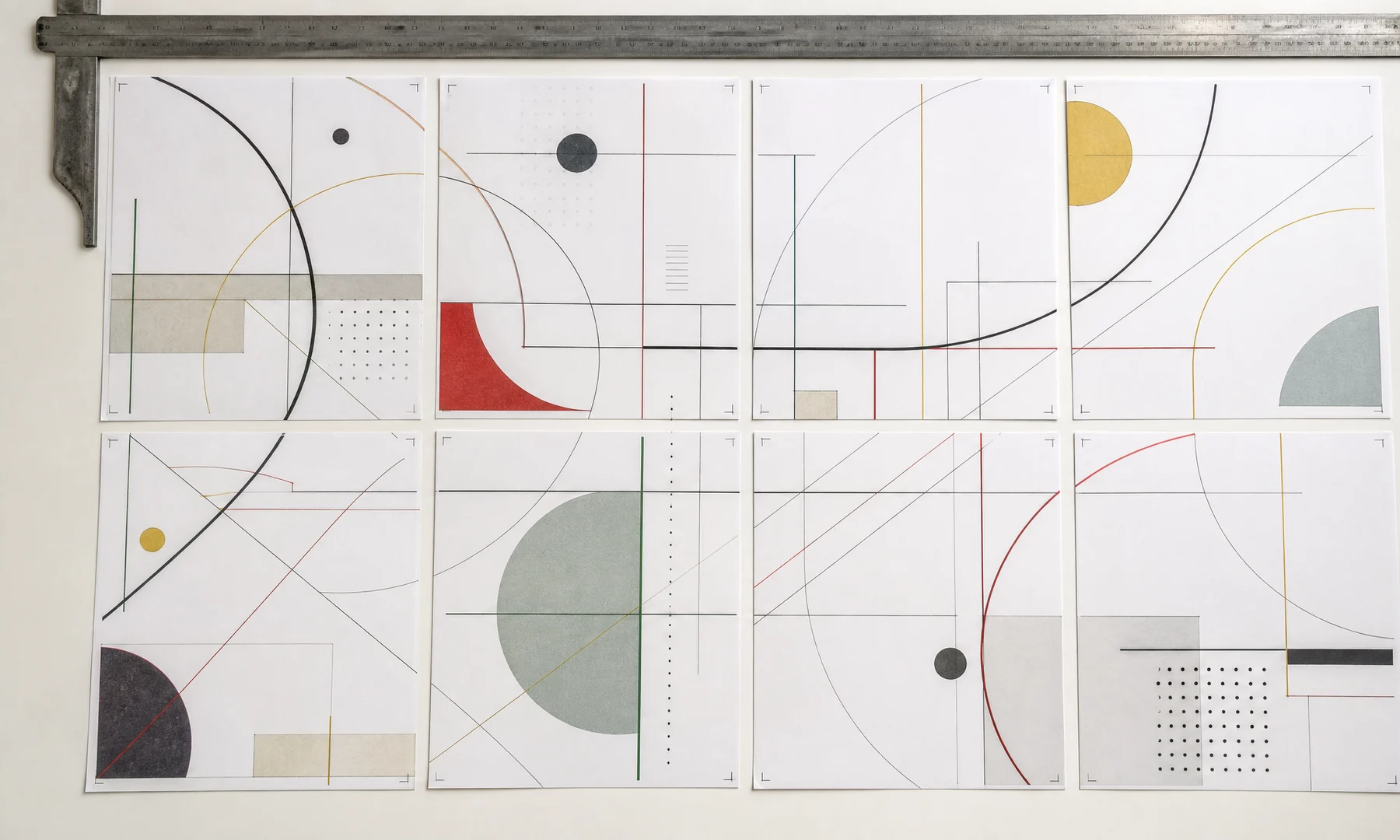
A practical workflow has three parts:
Choose the finished poster size.
Split the PDF into multiple A3 pages.
Print the split file at Actual Size or 100%.
The biggest mistake usually happens in the third step. If the print dialog scales the pages, the layout may still look fine on screen, but the assembled poster ends up too small.
For posters and classroom materials, minor scaling errors may be acceptable. For drawings, maps, templates, and measured plans, they can ruin the output.
Example A3 layouts
| Final layout | A3 orientation | Tile grid | Result |
|---|---|---|---|
| A1-style landscape | Landscape | 2 x 2 | Four A3 pages |
| Tall classroom poster | Portrait | 2 x 3 | Six A3 pages |
| Wide office chart | Landscape | 3 x 2 | Six A3 pages |
| Long banner | Landscape | 4 x 1 | Four A3 pages |
The exact page count depends on final size, orientation, overlap, and printer margins.
Step 1: Decide the finished size
Before splitting the PDF, decide how large the assembled print should be.
You can define the output as:
a standard size such as A2 or A1
an exact width or height in millimeters
a tile grid such as 2 pages wide by 3 pages tall
a fixed scale such as 1:1
For posters, choosing the number of A3 sheets is often easiest. For drawings, templates, and maps, use exact dimensions or fixed scale.
Step 2: Set A3 as the tile paper size
In your poster setup, choose:
Paper size: A3
Orientation: portrait or landscape
Final poster size: your target output
Overlap: usually 5-10 mm
Crop marks: on
Page labels: on
Wide posters often work better with landscape A3 because it can reduce the number of vertical joins. Tall posters may be simpler with portrait A3.
Step 3: Plan for printer margins
Most printers cannot print all the way to the paper edge. A typical printer leaves about 3-5 mm unprintable margin on each side, and sometimes a little more on one edge.
That affects tiled printing in two ways:
edges of the design can be clipped
you need trimming and overlap for clean assembly
Do not assume borderless A3 printing is available unless your printer specifically supports it for the paper type you are using.
Step 4: Check print settings before the full run
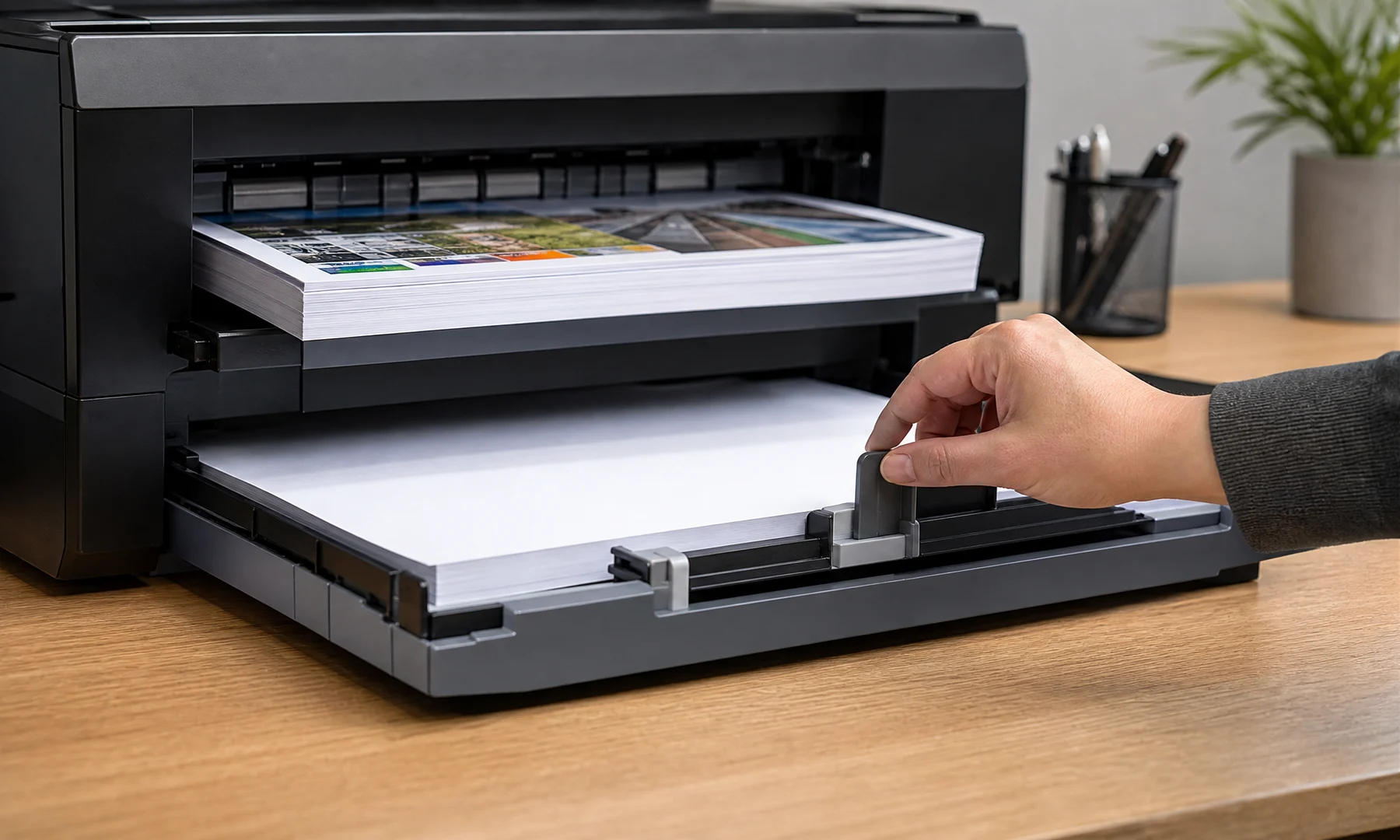
Open the split PDF in a viewer with clear print controls. Adobe Acrobat Reader is a common choice, but another PDF viewer can work if it exposes scale and paper size clearly.
Use:
Actual Size
100%
No scaling
Avoid:
Fit
Fit to Page
Shrink oversized pages
Scale to printable area
Auto rotate and scale if it changes the layout
Print one test page first if scale matters. If the PDF includes a ruler, scale bar, or known measurement, check it with a real ruler.
Step 5: Trim and assemble the A3 sheets
After printing, let the pages dry for a few minutes if you used an inkjet printer or heavy ink coverage.
Then assemble them like this:
Lay out all pages on a large table or clean floor.
Put them in page order.
Check the full layout before cutting anything.
Trim along crop marks where needed.
Align the overlapping printed areas.
Join sheets with a glue stick for a flatter front surface.
Reinforce seams with tape on the back side.
If visible seams or glare matter, avoid taping across the front. Front-side tape is quick, but it often catches light and makes joins more obvious.
Troubleshooting
| Problem | Likely cause | Fix |
|---|---|---|
| Poster is too small | Print dialog scaled pages | Reprint at Actual Size or 100% |
| Edges are missing | Printer clipped the unprintable margin | Add overlap and keep key content away from edges |
| Pages do not line up | Mixed paper sizes or scaling | Match PDF size, printer paper, and scale |
| File prints on A4 instead of A3 | Printer or viewer still set to A4 | Set both the dialog and printer properties to A3 |
| Text looks blurry | Source PDF contains low-resolution images | Use a better source or smaller final size |
FAQ
Can I print a large PDF across multiple A3 pages without a plotter?
Yes. Split the PDF into tiled A3 pages, then print the result at Actual Size or 100%. After that, trim and assemble the sheets.
What overlap should I use for A3 poster printing?
Use around 5 mm for simple posters and 8-10 mm for detailed maps, drawings, or image-heavy layouts.
Should I use crop marks?
Yes. Crop marks make trimming faster and improve alignment during assembly.
Can I use Adobe Acrobat Reader Poster mode instead?
Yes, especially for a quick one-off job. A pre-split PDF is often easier to trust when you want a repeatable file that can be printed again later with fewer setting changes.
Why do my A3 pages have white borders?
Most printers leave 3-5 mm of unprintable margin around the page. Those white borders are normal and are one reason trimming is expected in tiled poster assembly.
Final checklist
The file is already split into A3 pages.
The printer is loaded with A3 paper.
Print scaling is set to Actual Size or 100%.
Fit to Page is turned off.
Overlap is set, usually 5-10 mm.
Crop marks are enabled if you plan to trim.
You printed one test tile if scale matters.
A ruler check confirms the test page printed at the expected size.
Try Rasterbator.pics
Use Rasterbator.pics to test the article advice with your own image, page size, overlap, margins, and tiled PDF export.
Try Rasterbator.pics