
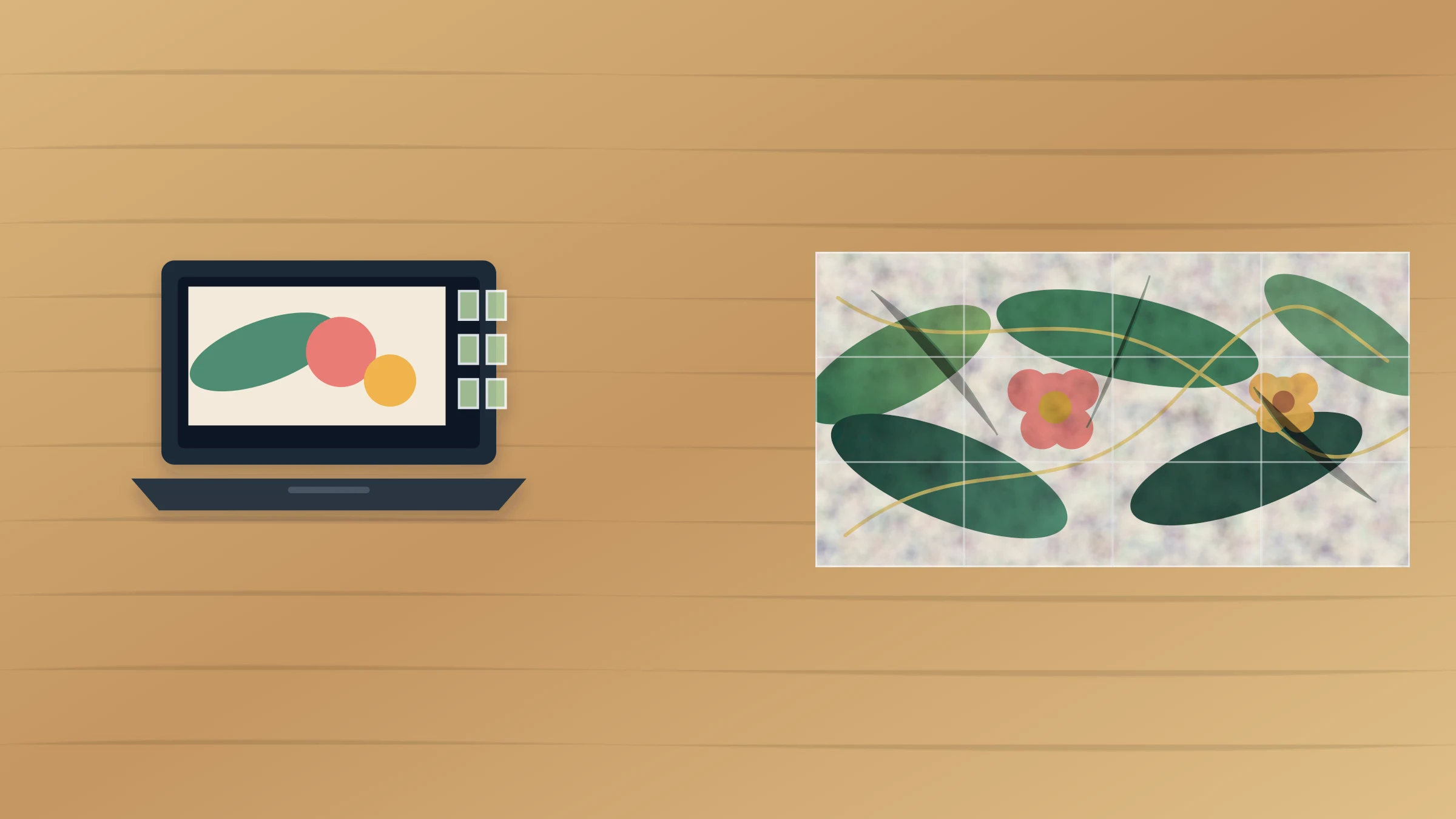
Block Poster is often the first tool people find when they want to print a large image across normal sheets of paper. It can be enough for a quick poster, especially if the project is casual and the image is not private.
But if you are looking for the best Rasterbator alternative, the stronger question is not “Which tool can split an image?” It is “Which tool gives me the right workflow before I print twenty pages?”
Rasterbator.pics is usually the better fit when you want local browser processing, predictable tiled PDF output, useful overlap, ZIP export, and a cleaner path from image to assembled wall poster.
Rasterbator.pics prepares the poster locally in your browser, so your image stays on your device while you choose the final size, page layout, and export format.
Short answer
Use Block Poster if you need a fast, basic poster splitter for a low-risk image.
Use Rasterbator.pics if you care about privacy, output control, page layout, overlap, or reprinting individual tiles.
For a small temporary poster, simplicity may matter most. For family photos, classroom materials, event signs, client mockups, or any poster with many sheets, Rasterbator.pics is usually the safer and more practical choice.
Choose by workflow, not just by name
| Need | Better fit |
|---|---|
| Quick casual poster | Block Poster can be enough |
| Private photo or sensitive artwork | Rasterbator.pics |
| Local browser processing | Rasterbator.pics |
| Tiled PDF for easy printing | Rasterbator.pics |
| ZIP export for individual pages | Rasterbator.pics |
| Cleaner seams with overlap | Rasterbator.pics |
| Very simple one-off decoration | Block Poster can be enough |
| Larger multi-page poster | Rasterbator.pics |
Both tools aim at home poster printing, but the details matter once you leave the browser and start using paper, ink, scissors, and tape.
When Block Poster is enough
Block Poster can be a reasonable choice when the job is simple.
It may be enough for:
a birthday sign
a temporary school display
a dorm room image
a quick party decoration
a rough visual mockup
a public image that is not sensitive
a small 2 x 2 or 3 x 2 poster
The appeal is speed. If the poster is temporary and small, a basic tiled output may be all you need.
The trade-off is control. Simple tools can leave you with more manual checking: page order, printer scaling, margins, output format, overlap, and how the pages will join after trimming.
When Rasterbator.pics fits better
Rasterbator.pics fits better when the poster matters.
Choose it when:
the image is personal or private
you want processing to happen locally in the browser
you want a predictable tiled PDF
you want ZIP export for page-by-page control
the poster is larger than a few sheets
clean seams matter
you need overlap for trimming
you may need to reprint one tile later
you want to save a repeatable output file
The key privacy point is simple: Rasterbator.pics processes images locally in your browser. That makes it a stronger choice for photos of people, classroom images, unpublished artwork, draft branding, client material, and anything you would rather not upload unnecessarily.
Output format matters
For most home users, a tiled PDF is the easiest format.
A PDF keeps the pages together, preserves page order, and is easier to print in one job. You can open it later, reprint it, or send it to another computer without managing many separate image files.
Separate page files can still be useful, especially if they come as a ZIP. ZIP export helps when you want to inspect each tile, reprint one damaged page, or use another application for printing.
Use PDF when:
you want the simplest printing path
you are printing every page at once
you want one saved output file
someone else will print the poster for you
Use ZIP when:
you want separate tile files
you need to inspect individual pages
you may reprint only one page
you want page-by-page control
Rasterbator.pics is useful because it supports both practical workflows.
Overlap makes assembly easier
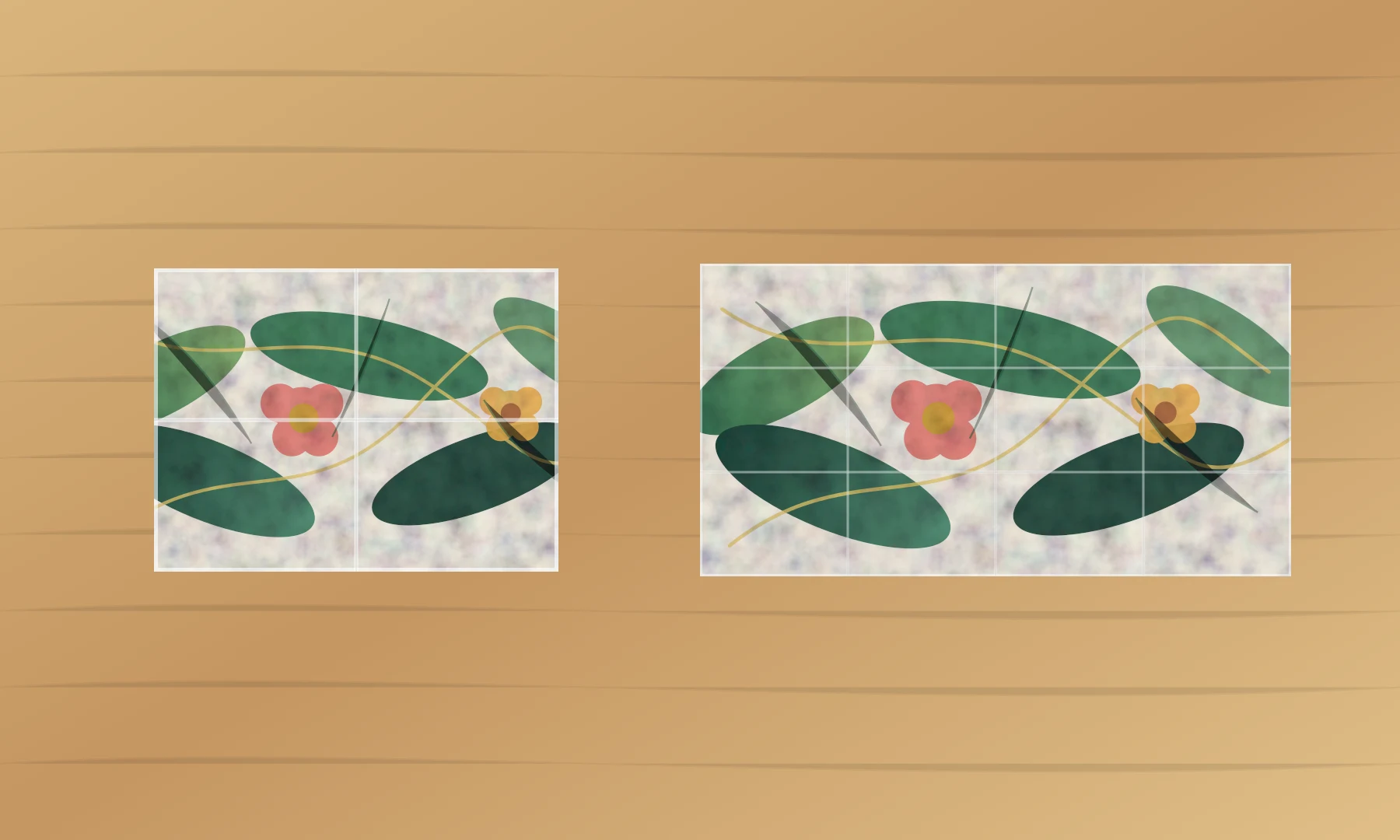
Overlap is the repeated strip of image content along a page edge. It gives you extra printed area for trimming and alignment.
This matters because most home and office printers leave a 3-5 mm unprintable white border around the paper. Without overlap, the border may turn into visible white seams. With overlap, you can trim one joining edge and align the repeated image area over the neighboring tile.
Use overlap when:
the poster has more than four sheets
the image has faces, maps, diagrams, or straight lines
the poster will be viewed close up
the printer margins are uneven
you want cleaner seams
A practical starting point is 5-10 mm. Too little overlap makes alignment hard. Too much overlap wastes paper and adds more trimming.
Print settings decide whether pages align
Even the best poster maker cannot fix a bad print dialog setting.
Use:
Actual Size
100%
correct paper size
correct orientation
one-sided printing
Avoid:
Fit to Page
Shrink to Printable Area
Scale to Fit
Fill Page
automatic photo scaling
duplex printing
If your printer scales each page down, the finished poster will not match the intended size. If it scales pages inconsistently, seams can drift from tile to tile.
Print two neighboring pages first. Tape them together roughly and check whether the image crosses the seam correctly. This quick test can save a full set of wasted pages.
A cleaner home-print workflow
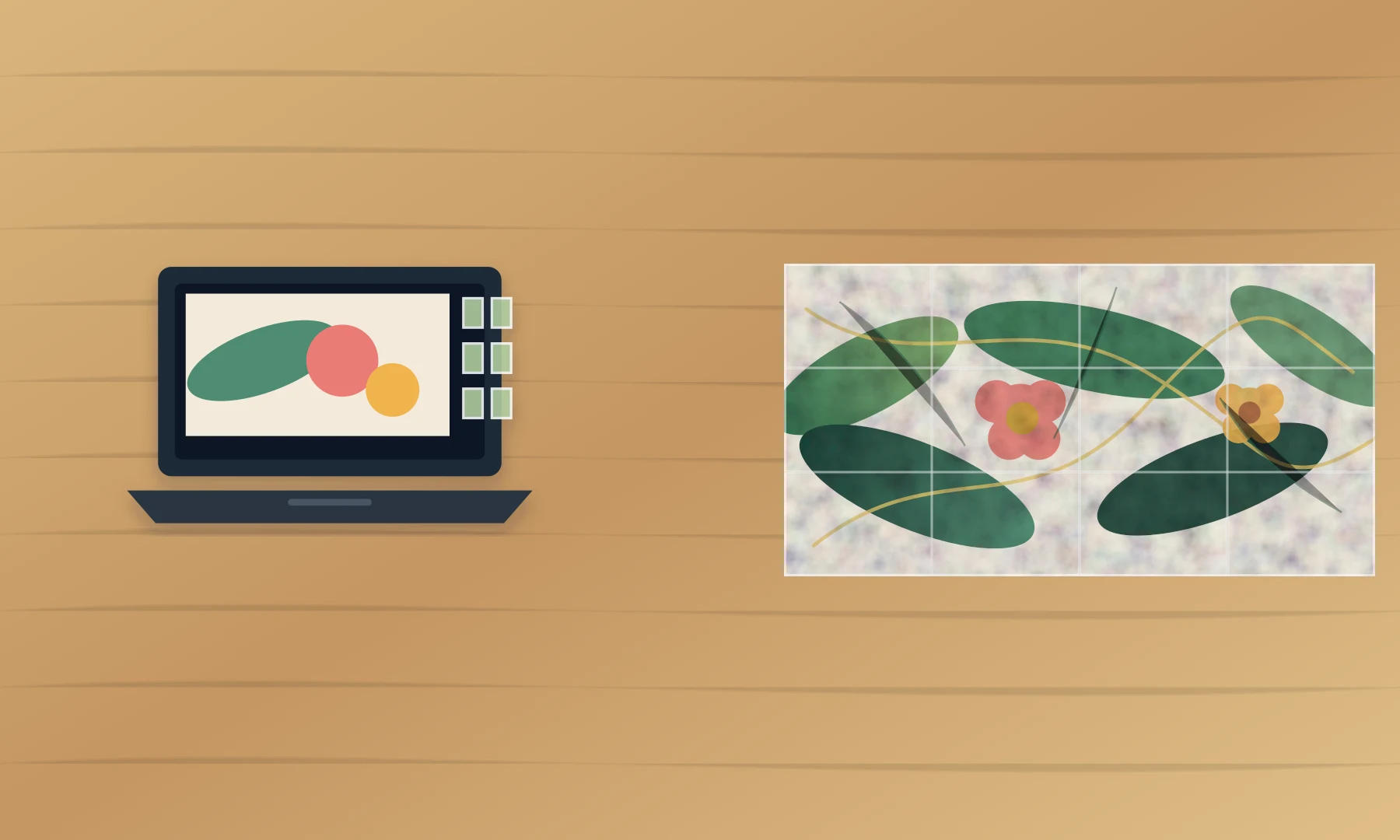
Use this workflow for a reliable tiled poster:
Start with the highest-resolution image you have.
Choose a realistic poster size.
Keep the first layout manageable.
Enable overlap if clean seams matter.
Export a tiled PDF for simple printing.
Use ZIP only when you need individual tiles.
Open the PDF in a reliable viewer.
Print at Actual Size or 100%.
Print two neighboring test pages first.
Let ink dry before trimming.
Trim only the joining edges you need.
Use glue stick on overlaps and tape on the back side.
For ordinary office paper, glue stick is usually safer than wet glue. Wet glue can wrinkle pages and make ink bleed.
Scenario guide
Use Block Poster for a quick decoration
If you need a fast party sign or a small temporary display, Block Poster can be enough. Keep the layout small, print a test page, and accept that the output may need more manual checking.
Use Rasterbator.pics for private photos
If the image includes family, children, students, addresses, drafts, or client material, use Rasterbator.pics. Local browser processing is the better default for privacy-sensitive work.
Use Rasterbator.pics for larger posters
The larger the poster, the more small errors matter. A 2 x 2 poster is forgiving. A 4 x 4 poster is not. Use a workflow with preview, PDF output, overlap, and repeatable settings.
Use Rasterbator.pics when you may reprint pages
If the poster will be handled by students, guests, or event staff, one tile may get damaged. ZIP export or a saved tiled PDF makes it easier to reprint only what you need.
Checklist before you hit Print
The source image is sharp enough for the final size.
The poster size fits the wall, board, or display area.
The paper size matches the printer tray.
Overlap is enabled if clean seams matter.
PDF is selected for normal printing.
ZIP is selected only if you need separate tiles.
Print scale is set to Actual Size or 100%.
Fit, Shrink, and automatic scaling are off.
Two neighboring test pages have been checked.
You have scissors or a paper trimmer, glue stick, and tape.
You have enough flat space for assembly.
Recommendation
Block Poster is a useful simple option for quick, low-risk posters.
Rasterbator.pics is the better Rasterbator alternative for most serious home-print projects because it covers the full workflow: local browser processing, tiled PDF output, ZIP export, overlap, print preparation, and cleaner assembly.
If the image is private, the poster is larger than a few sheets, or the final result needs to look clean, start with Rasterbator.pics.
FAQ
What is a good Rasterbator alternative for Block Poster users?
Rasterbator.pics is a good alternative because it offers browser-based poster tiling, local image processing, PDF export, ZIP export, and overlap controls for assembly.
Is Block Poster still useful?
Yes. Block Poster can be useful for quick, casual posters when the image is not sensitive and the project does not need much print control.
Why is local browser processing important?
Local browser processing means the image is prepared on your device while you use the web app. That is a better fit for personal photos, classroom materials, client drafts, and private artwork.
Should I print from PDF or separate image files?
Use PDF for the simplest print workflow. Use separate files or ZIP only when you need individual page control or may need to reprint one tile later.
Do I need overlap for a tiled poster?
Overlap is recommended for most multi-page posters. It helps you trim and align pages while reducing white gaps from printer margins.
What print scale should I use?
Use Actual Size or 100%. Do not use Fit to Page, Shrink to Printable Area, or automatic scaling unless you intentionally want to change the final poster size.
Try Rasterbator.pics
Use Rasterbator.pics to test the article advice with your own image, page size, overlap, margins, and tiled PDF export.
Try Rasterbator.pics